App reference
Selecting systems and emulators
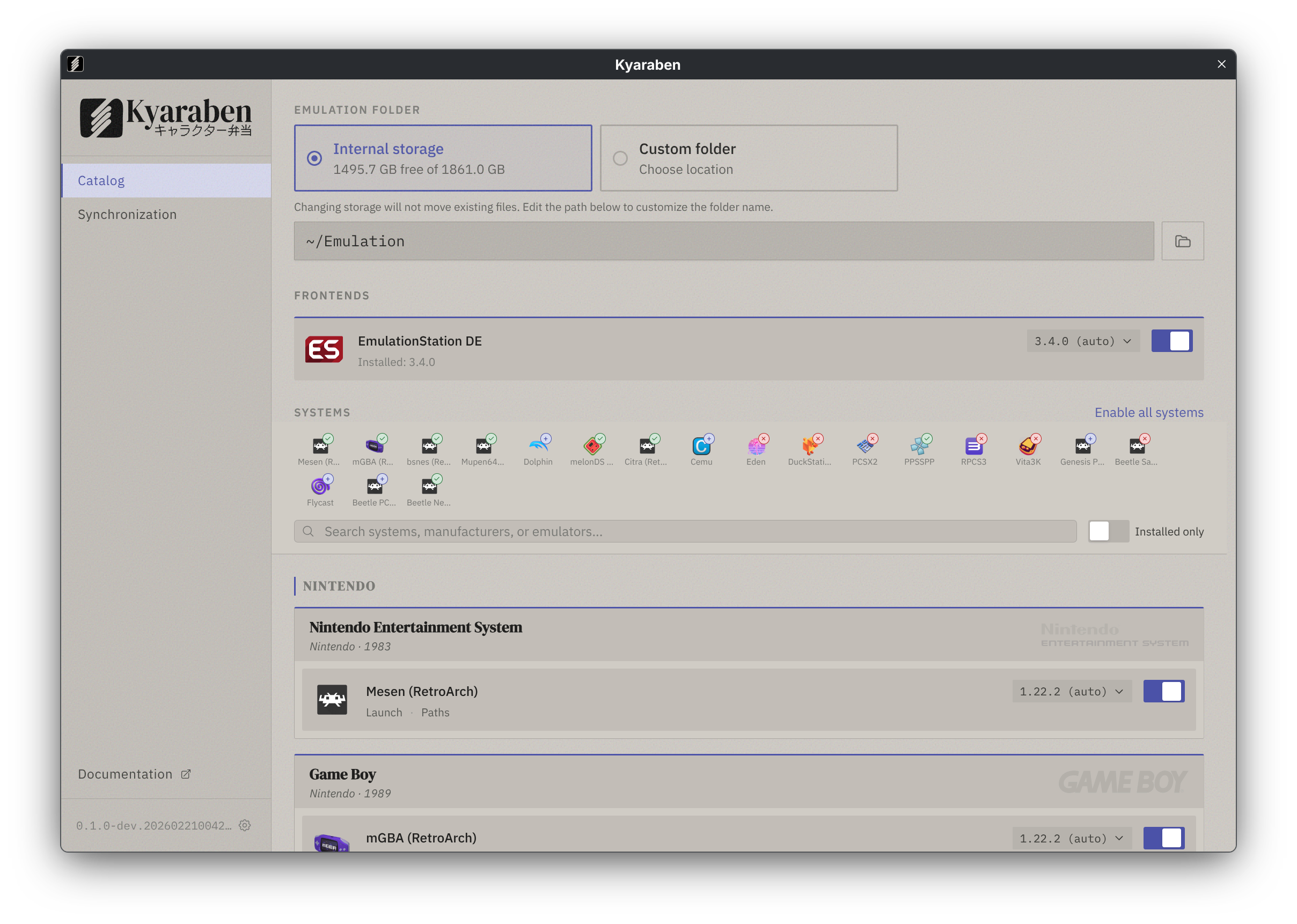
Section titled “Selecting systems and emulators”The main screen shows all available systems. Check a system to enable it, uncheck to disable. Each system shows its available emulators.
Checking BIOS and firmware status
Section titled “Checking BIOS and firmware status”Some systems require BIOS or firmware files. The provisions panel shows which files are needed, whether they are found, and whether they pass hash verification. Kyaraben does not distribute these files.
Emulator support
Section titled “Emulator support”Kyaraben configures each emulator with paths, controller bindings, and hotkeys. Not all emulators support all features. This table shows what Kyaraben configures for each emulator.
| Emulator | System | Syncs | Hotkeys | Resume | Controller | Players | Provisions |
|---|---|---|---|---|---|---|---|
| Snes9x | SNES | saves, states, screenshots | full | full | configured | 4 | none |
| bsnes | SNES | saves, states, screenshots | full | full | configured | 4 | none |
| Mesen | NES | saves, states, screenshots | full | full | configured | 4 | none |
| Genesis Plus GX | Genesis, SMS, GG | saves, states, screenshots | full | full | configured | 4 | none |
| mGBA | GB, GBC, GBA | saves, states, screenshots | full | full | configured | 4 | none |
| melonDS | DS | saves, states, screenshots | full | full | configured | 4 | none |
| Citra | 3DS | saves, states, screenshots | full | full | configured | 4 | none |
| Azahar | 3DS | saves, states, screenshots | full | full | configured | 4 | none |
| Mupen64Plus | N64 | saves, states, screenshots | full | full | configured | 4 | none |
| Beetle Saturn | Saturn | saves, states, screenshots | full | full | configured | 4 | Saturn BIOS |
| Beetle PCE | PC Engine | saves, states, screenshots | full | full | configured | 4 | CD System Card (for CD games) |
| Beetle NGP | Neo Geo Pocket | saves, states, screenshots | full | full | configured | 4 | none |
| FBNeo | Arcade | saves, states, screenshots | full | full | configured | 4 | varies by game (optional) |
| FBNeo | Neo Geo | saves, states, screenshots | full | full | configured | 4 | Neo Geo BIOS (optional) |
| Stella | Atari 2600 | saves, states, screenshots | full | full | configured | 4 | none |
| VICE x64sc | C64 | saves, states, screenshots | full | full | configured | 4 | none |
| DuckStation | PSX | saves, states, screenshots | full | save | configured | 4 | PSX BIOS |
| PCSX2 | PS2 | saves, states, screenshots | full | save | configured | 4 | PS2 BIOS |
| PPSSPP | PSP | saves, states, screenshots | full | load | configured | 1 | none |
| Dolphin | GC, Wii | saves, states, screenshots | full | none | configured | 4 | Wii keys (optional) |
| Flycast | Dreamcast | saves, states, screenshots | partial | full | configured | 1 | DC BIOS (optional) |
| Cemu | Wii U | saves | none | none | configured | 1 | Wii U keys (optional) |
| Eden | Switch | saves, screenshots | partial | none | configured | 2 | Switch keys |
| xemu | Xbox | states, screenshots | none | none | auto | 4 | Xbox Boot ROM, Flash ROM |
| Xenia Edge | Xbox 360 | saves, screenshots | none | none | auto | - | none |
| Vita3K | PS Vita | saves, screenshots | none | none | auto | - | PS Vita firmware |
| RPCS3 | PS3 | saves, states, screenshots | none | none | auto | - | PS3 firmware |
Definitions:
- Synchronizes: data types stored in the collection and available for
synchronization.
saves= in-game saves,states= savestates,screenshots= captured screenshots. - Hotkeys:
full= save/load state, fast forward, pause, screenshot, quit.partial= subset of these.none= no Kyaraben hotkey configuration. - Resume: auto-resume support.
full= autosave on exit and autoload on launch.save= autosave only.load= autoload only.none= not supported. - Controller:
configured= Kyaraben generates controller bindings.auto= emulator handles controller detection. - Players: number of controller slots Kyaraben configures.
-= handled by emulator. - Provisions: BIOS, firmware, or encryption keys needed. Items marked “(optional)” enable extra features but aren’t required for games to run.
RetroArch cores (bsnes through VICE x64sc) share configuration. They use RetroArch’s hotkey system where Back (Select) enables hotkeys and a second button triggers the action.
Applying changes
Section titled “Applying changes”Click apply. If there are conflicts with your existing configuration, Kyaraben shows a preflight check with the exact changes it will make: which config files are created, modified, or left unchanged, with line-by-line diffs.
When you confirm, Kyaraben:
- Fetches emulator packages (from a binary cache, so downloads are fast)
- Installs emulator binaries to Kyaraben-managed directories
- Generates or updates emulator configuration files
- Creates the folder structure in your
Collection - Creates
.desktopentries for each emulator - Updates the manifest tracking what was installed
If apply fails partway through, the previous state remains intact. The manifest is only updated after all steps succeed.
Browsing and launching games
Section titled “Browsing and launching games”Kyaraben can install EmulationStation DE as a frontend for browsing and launching your games. Enable it in the settings. EmulationStation DE scans your ROM directories and provides a unified game launcher with metadata scraping, media art, and controller-friendly navigation.
What Kyaraben installs and where
Section titled “What Kyaraben installs and where”Kyaraben installs emulators and tools into Kyaraben-managed directories:
- Emulator binaries:
~/.local/state/kyaraben/ - Desktop entries:
~/.local/share/applications/kyaraben/ - CLI tools:
~/.local/bin/kyaraben,~/.local/bin/kyaraben-ui
This means Kyaraben does not overwrite emulators you installed from other
sources. You can install the same emulators from other sources, but they share
config files at default paths (e.g. ~/.config/retroarch/retroarch.cfg).
Emulators themselves may create additional files (shader caches, input profiles, logs). Kyaraben does not manage these.
Configuration management
Section titled “Configuration management”Kyaraben manages specific keys in emulator config files: paths that point to
your Collection (ROM directories, BIOS paths, save directories, etc.).
Some settings like shaders and auto-resume can be opted into; most others
(resolution, audio) are yours to configure.
When you apply, Kyaraben compares what it last wrote with what’s currently on disk. If you changed something Kyaraben doesn’t manage, your change is preserved. If you changed a managed key, Kyaraben warns you before overwriting.
Kyaraben expects to be the sole manager of these config files. Using another tool that writes to the same files will cause conflicts.
The collection
Section titled “The collection”See collection reference for the folder structure, what syncs, and file versioning behavior.
Guarantees
Section titled “Guarantees”Kyaraben makes the following guarantees about installation and uninstallation behavior.
Installation
Section titled “Installation”- Installations are reproducible. Same config, same result, on any Linux machine.
- No root access needed, no system packages modified. Kyaraben’s binaries and
state live under
~/.local/state/kyaraben/and~/.config/kyaraben/. Emulator configs are written to their default paths (e.g.~/.config/retroarch/). kyarabenandkyaraben-uiare added to yourPATHvia~/.local/bin/..desktopentries are created for kyaraben and each installed emulator. These entries are configured to use kyaraben’s managed paths.- Apply is atomic. If it fails, the manifest is not updated. The previous state remains intact.
- Apply is idempotent. Running it twice with the same config produces the same result.
- Uninstall is clean.
kyaraben uninstallremoves only Kyaraben-managed files. Your collection (ROMs, saves, BIOS) is never touched.
Updating
Section titled “Updating”Kyaraben checks for updates automatically shortly after startup. When a new version is available, a banner appears offering to download and install it. You can also check for updates manually via the settings icon in the sidebar.
After updating, Kyaraben prompts you to run Apply to get any new emulator configurations included in the update. This is optional but recommended.
Hotkeys
Section titled “Hotkeys”Kyaraben configures controller hotkeys for emulators that support them. The default bindings use a modifier button (Back/Select on most controllers) plus an action button.
| Action | RetroArch cores | DuckStation | PCSX2 |
|---|---|---|---|
| Save state | Select + R1 | Select + R1 | Select + R1 |
| Load state | Select + L1 | Select + L1 | Select + L1 |
| Next slot | Select + D-Pad Right | Select + D-Pad Right | Select + D-Pad Right |
| Previous slot | Select + D-Pad Left | Select + D-Pad Left | Select + D-Pad Left |
| Fast forward | Select + R2 | Select + R2 | Select + R2 |
| Pause | Select + A/Cross | Select + A/Cross | Select + A/Cross |
| Screenshot | Select + B/Circle | Select + B/Circle | Select + B/Circle |
| Quit | Select + Start | Select + Start | Select + Start |
| Open menu | Select + Y/Square | Select + Y/Square | - |
Emulators marked as none for hotkeys in the emulator support table do not have Kyaraben-configured hotkeys. Use their native keyboard shortcuts or configure hotkeys manually.
Troubleshooting
Section titled “Troubleshooting”Game won’t launch
Section titled “Game won’t launch”If a game fails to launch or shows a black screen:
- Check BIOS files. Run
kyaraben doctoror check the provisions panel in the UI. Many systems require specific BIOS versions. - Verify the ROM format. Some emulators only support certain formats. For example, PCSX2 works best with
.isoor.chdfiles, not.bin/.cue. - Check the emulator logs. Emulators write logs to their config directories (e.g.
~/.config/duckstation/).
Controller not detected
Section titled “Controller not detected”Kyaraben uses SDL2 for controller input. If your controller is not detected:
- Check that the controller works in other applications
- For Bluetooth controllers, ensure the controller is paired and connected before launching the emulator
- On Steam Deck, if running from Desktop Mode, Steam’s controller handling may interfere. Try disabling Steam Input for the emulator.
Non-goals
Section titled “Non-goals”- Windows, macOS, iOS, or Android support
- ROM management or scraping (use EmulationStation DE)
- Netplay configuration
Privacy and network activity
Section titled “Privacy and network activity”Kyaraben makes network requests in these situations:
- Update checks: on startup, Kyaraben fetches
https://api.github.com/repos/fnune/kyaraben/releases/latestto check for new versions. This discloses your IP address and akyaraben-updateruser agent to GitHub. - Emulator downloads: when you apply, Kyaraben downloads emulator packages from their official sources (GitHub releases, GitLab, libretro buildbot).
- Synchronization: if you enable sync, Kyaraben connects to a relay server during device pairing and uses Syncthing for peer-to-peer file transfer.
Kyaraben does not collect telemetry or analytics. The relay server stores pairing codes temporarily (until redeemed or expired) but does not log device identifiers or IP addresses beyond what is necessary for the pairing handshake.
Synchronization
Section titled “Synchronization”Kyaraben synchronizes your saves, states, screenshots, and scraped metadata across all your devices. Start a game on your desktop, pick up where you left off on your Steam Deck.
Synchronization is peer-to-peer with no cloud accounts. Kyaraben uses Syncthing under the hood, which is installed automatically when you enable synchronization. Data transfers directly between your devices when they are online, and changes queue up when devices are offline.
Synchronization requires systemd. Service management uses systemctl --user.
Enabling synchronization
Section titled “Enabling synchronization”- Go to Settings > Synchronization
- Click “Enable synchronization”
Pairing devices
Section titled “Pairing devices”Pairing connects two devices so they can synchronize.
On the first device:
- Go to Settings > Synchronization
- Click “Generate pairing code”
- A 6-character code appears (e.g. K7X9M2)
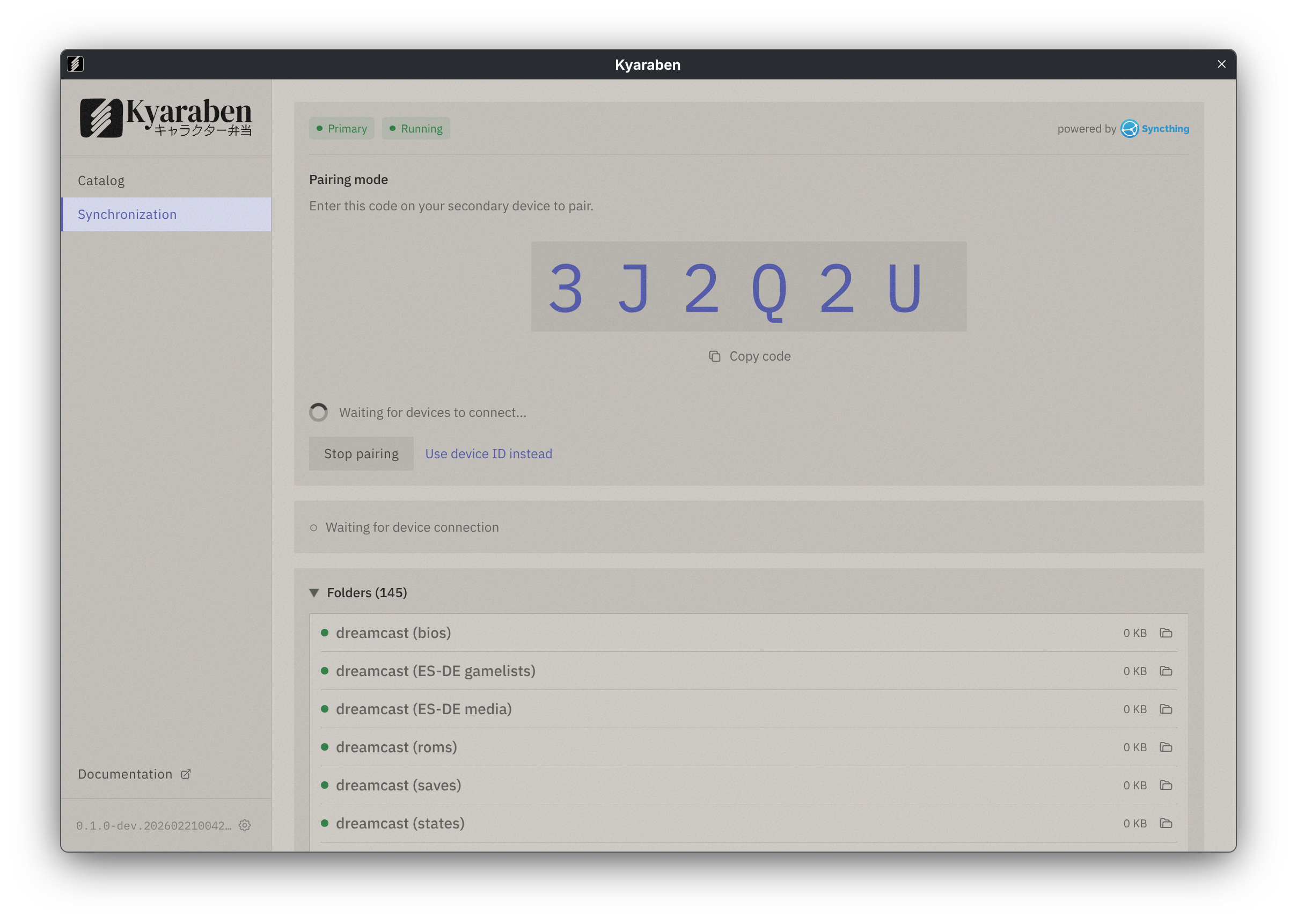
On the second device:
- Go to Settings > Synchronization
- Enter the code from the first device
- Click “Connect”
The code works from any network. Devices do not need to be on the same local network.
See collection reference for what syncs and file versioning behavior.
Managing synchronization
Section titled “Managing synchronization”To add a new device, see Pairing devices.
To remove a device, click the trash icon next to the device in the synchronization settings.
See CLI reference for command-line management including status checks, device removal, and configuration options.